Approval workflows in Google Forms and Sheets, without an add-on
Most approval processes start the same way. Someone fills in a form or sends an email, a person has to say yes or no, and then somebody needs to know the answer. Leave, purchase requests, access requests, expense sign-off, content review. If your team already lives in Google Workspace, you do not need to buy an approvals add-on to do this well. A Google Form, a Google Sheet and Apps Script cover it, and everything stays in your own account.
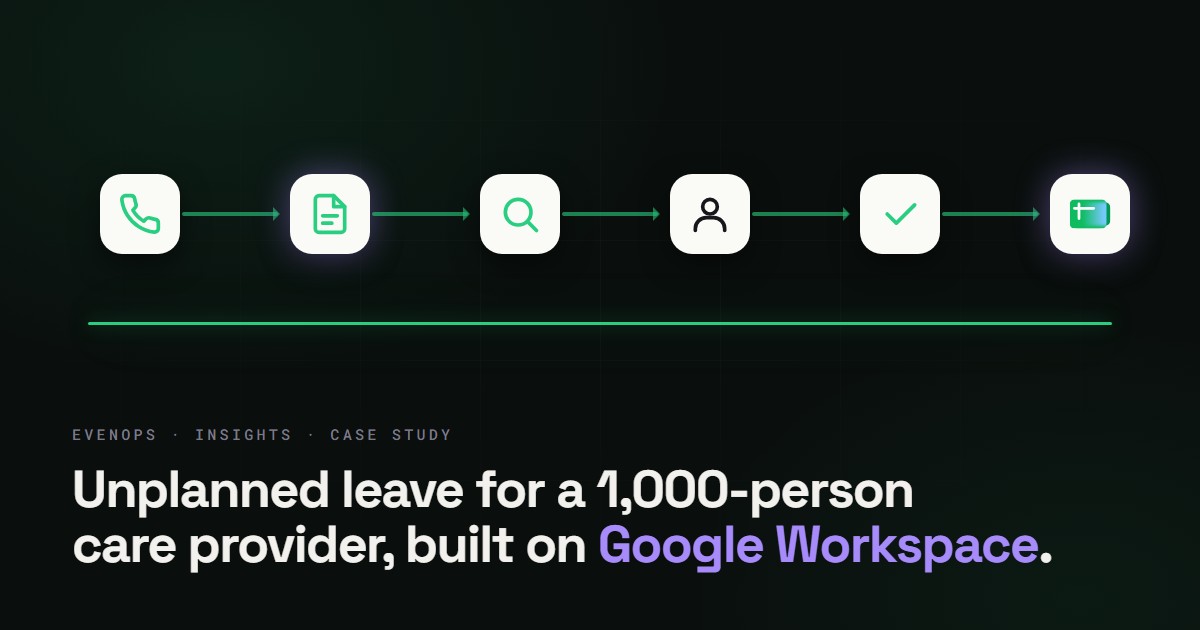
This is the design we recommend. It draws on the unplanned-leave system we built for a care provider with more than 1,000 staff, where requests are routed to the right approver, decided with one click, escalated when nobody answers, and written to an audit trail. It is also honest about where the approach stops being the right tool.
The five parts of an approval workflow
- Intake. A Google Form captures the request in a fixed shape. Required fields and dropdowns do most of the validation for you. Every response lands as a row in a linked Sheet.
- Routing. Something decides who approves this request. That rule should live in a sheet, not in code: a table of site or department against approver, with a backup column.
- Decision. The approver gets an email with the request details and Approve and Decline links. One click, no logging in to a separate tool.
- Escalation. If nobody answers, the request is not left to rot. A timer sends a reminder, then moves it to the backup approver.
- Audit trail. Every request, decision and change is written down with who did it and when.
Intake and routing
Use an installable form-submit trigger so a script runs the moment a response arrives. Google's documentation is explicit that installable triggers can call services that need authorization, such as sending email, which simple triggers cannot do. They run as the account that created them, so create the trigger from a stable account, not one person's.
Routing is where approval systems get their real complexity. In the leave project the first weeks went on finding the exceptions: the site with two managers, the region where a coordinator approves instead, the after-hours rule. Every one of those became a row in a routing sheet that the client's admin team can edit. The script only looks the answer up. When the organisation changes, an admin edits a row; nobody edits code.
A one-click decision that is safe
An email with an Approve link is convenient, and it is also a link anyone could forward or guess. Done carelessly, it is the weakest point of the whole system. A safe pattern is to make each link carry a long random token tied to that one request, with the script, published as a web app, checking three things before it records anything: the token matches the request, the signed-in person is the approver for it, and the request is still pending.
After the decision the token should be cleared. If two people click at nearly the same moment, a lock around the write (Apps Script has LockService for exactly this) makes sure the second one sees that the request is already decided and stops. Without the lock, both decisions can be written.
Escalation and the audit trail
Escalation is a time-driven trigger. It runs on a schedule, reads the pending requests once, and for each one past its deadline either sends a reminder or reassigns it to the backup approver. Time-driven triggers can run as often as every minute, but Apps Script may shift the exact moment inside the window, so design deadlines in hours, not minutes.
The audit trail is the part people undervalue until they need it. A good pattern is a separate log sheet that only the script appends to: request id, event, actor, timestamp. Correct mistakes by adding a new row, never by editing the log. Months later, when someone asks why a request was approved, the answer is a filter, not a search through inboxes.
What breaks at scale
A prototype works on ten requests. These are the things that fail once you have thousands, and the reason we design for them from the start.
- Concurrency. Two writes at once produce two decisions. Use a lock and re-read the status inside it.
- Routing buried in code. Every organisational change becomes a developer job. Keep it in a sheet.
- Silent waiting. A request nobody is looking at is a failed request. Escalation is not optional.
- Slow big sheets. Reading a whole sheet for every click gets slow quickly. Read once per run, index it in memory, cache what rarely changes, and write back in batches.
- Email limits. Google lists daily email recipient quotas that differ between consumer and Workspace accounts (checked 11/10/2026: 100 a day for consumer accounts and 1,500 a day for Google Workspace accounts, via MailApp). A busy approval flow can reach them. Count your sends and alert an administrator before the cap, not after mail stops.
Two further limits shape the design. A single script execution can run for at most 6 minutes, and the total runtime of all triggers in a day is capped (90 minutes for consumer accounts, 6 hours for Workspace accounts, per Google's quota page, checked 11/10/2026). That is why the escalation job processes in batches against a time budget and resumes on its next run, rather than trying to do everything in one pass. Our Apps Script quota planner helps you check whether your volume fits.
When this is the wrong tool
Apps Script approvals fit simple to moderately complex flows inside one organisation: one or two levels of approval, routing you can write in a table, and a team that lives in Workspace. If you need approvals across companies, legal-grade signatures, parallel multi-stage sign-off with branching rules, or a flow that business users redesign weekly themselves, a dedicated workflow product is likely a better home. We will say so when we see it.
An approval workflow earns its place when nobody has to chase anyone, and the record is already there when someone asks.
If a recurring approval at your organisation still lives in inboxes and phone calls, tell us the process in 2 lines. We will tell you honestly whether a Form, a Sheet and a script will carry it, or whether it needs something heavier.