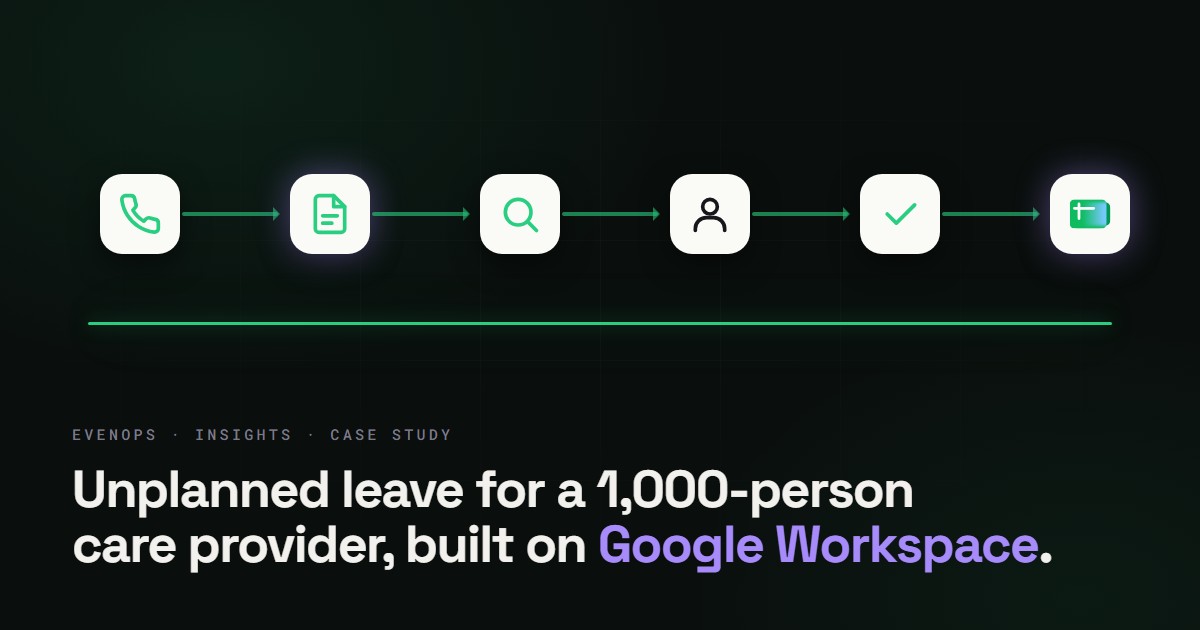
Send calendar reminders from a Google Sheet
Dates that matter, renewals, follow-ups, deadlines, live in a spreadsheet, and nobody remembers to check it until something is already late.
Key dates held in a Google Sheet, such as renewals, follow-ups, and deadlines, can trigger a Google Calendar event and a Gmail reminder to the row's owner when the reminder date arrives, so nobody has to remember to check the sheet. Evenops builds this in Apps Script and the sheet stays the single source of dates.
How does it run?
3 stepsStep 01Trigger
Sheet row reaches its reminder date
Step 02Pull
Reminder details pulled from the row
Step 03Create
Calendar event and Gmail reminder created for the owner
What do you get?
3 outcomes- ✓Reminders fire on schedule without a person checking the sheet
- ✓Every reminder carries its row's context
- ✓The sheet stays the single source of dates
Which tools does it use?
Time saved
Removes manual checking of a sheet for key dates.What does the script do?
A time-driven Apps Script that checks a Sheet of dates every morning. When a row reaches its reminder date (a number of days before the date you set, or on the day), it creates an all-day event on a Google Calendar and emails the row's owner with the title and notes. The row is marked Reminded with the time, so it never fires twice. Dates can be real date cells or text typed as 15/11/2026, 2026-11-15 or 15 Nov 2026, read day first. A row whose date cannot be read, or whose owner address is missing, is reported to an administrator instead of being skipped.
What do you need first?
- A Google Sheet with a heading row and columns for Title, Date, Owner email and (optionally) Notes. Different headings are fine: you tell the script what they are.
- A Google Calendar for the events. Your own calendar works, or a shared team calendar that you can edit (you will need its ID).
- A shared mailbox for the administrator alerts.
- About 25 minutes. No paid add-on.
How do you set it up?
7 stepsCreate the script
Open script.google.com in the account that should own the events, create a project and paste the code below into Code.gs.
Fill in CONFIG
Set SPREADSHEET_ID and SHEET_NAME, the four heading names, DAYS_BEFORE and ALERT_TO. Leave CALENDAR_ID empty to use your own calendar, or paste a shared calendar's ID (Calendar settings, Integrate calendar).
Set the time zones
The script reads dates in the spreadsheet's time zone (File, Settings) and creates events in the script's time zone (Project Settings). Make both the same, for example Sydney, so a date means the same day everywhere.
Run it once by hand
Pick sendReminders and press Run, then authorise Sheets, Calendar and email access. Three columns headed Status, Event ID and Reminded on appear to the right of yours. Any row already due gets its reminder, so test with your own address as the owner first.
Install the trigger
Pick installTrigger and press Run once. It schedules sendReminders daily between 7 and 8 AM in the script's time zone and replaces any earlier copy.
Agree the rules with the team
To send a reminder again, clear the row's Status cell. To fix a row marked Date not readable or Bad owner email, correct the cell and clear Status.
Turn on failure emails
In Triggers, open the trigger and set Failure notification settings to notify you immediately.
The script
// Turns dates in a Google Sheet into Google Calendar events and an email reminder to the row's owner.
// Paste into Code.gs in a new project at script.google.com, edit CONFIG, run installTrigger() once.

const CONFIG = {
  SPREADSHEET_ID: 'PASTE_THE_SPREADSHEET_ID_HERE',
  SHEET_NAME: 'Dates',
  CALENDAR_ID: '',               // leave empty for your own calendar, or paste a shared calendar's ID
  TITLE_HEADER: 'Title',         // the sheet's column headings, spelled exactly
  DATE_HEADER: 'Date',
  OWNER_HEADER: 'Owner email',
  NOTES_HEADER: 'Notes',
  DAYS_BEFORE: 3,                // remind this many days before the date (0 = on the day)
  LOOKBACK_DAYS: 7,              // a reminder this far overdue is still sent, older ones are reported instead
  MAX_PER_RUN: 50,
  // Stop well before the 6 minute limit. On a gmail.com account the whole day's
  // trigger time is 90 minutes, so lower this (for example 60 * 1000) there.
  TIME_BUDGET_MS: 4 * 60 * 1000,
  ALERT_TO: 'ops@example.com',
  ALERT_EVERY_MS: 6 * 60 * 60 * 1000,
};

const SCRIPT_HEADERS = ['Status', 'Event ID', 'Reminded on']; // added to the right of your columns
const MONTHS = ['jan', 'feb', 'mar', 'apr', 'may', 'jun', 'jul', 'aug', 'sep', 'oct', 'nov', 'dec'];
const EMAIL_PATTERN = /^[^\s@]+@[^\s@]+\.[^\s@]+$/;

function sendReminders() {
  const lock = LockService.getScriptLock();
  if (!lock.tryLock(30 * 1000)) return;
  const started = Date.now();
  const problems = [];
  let sheet = null;
  let cols = null;
  let out = null;
  try {
    const ss = SpreadsheetApp.openById(CONFIG.SPREADSHEET_ID);
    sheet = ss.getSheetByName(CONFIG.SHEET_NAME);
    if (!sheet) throw new Error('There is no tab called ' + CONFIG.SHEET_NAME);
    const tz = ss.getSpreadsheetTimeZone();
    const today = Utilities.formatDate(new Date(), tz, 'yyyy-MM-dd');
    const oldest = addDays_(today, -CONFIG.LOOKBACK_DAYS);

    // One read of the tab; every decision below is made in memory.
    const grid = sheet.getDataRange().getValues();
    const headers = grid[0].map(String);
    cols = columns_(sheet, headers);
    const rows = grid.slice(1);
    out = rows.map(function (r) {
      return { status: cell_(r, cols.status), eventId: cell_(r, cols.eventId), on: cols.on < r.length ? r[cols.on] : '' };
    });
    const calendar = CONFIG.CALENDAR_ID ? CalendarApp.getCalendarById(CONFIG.CALENDAR_ID) : CalendarApp.getDefaultCalendar();
    if (!calendar) throw new Error('Calendar not found: ' + CONFIG.CALENDAR_ID);

    let sent = 0;
    for (let i = 0; i < rows.length; i++) {
      const row = rows[i];
      const o = out[i];
      const title = String(row[cols.title]).trim();
      if (o.status !== '' || (title === '' && row[cols.date] === '')) continue; // finished, or an empty row
      if (sent >= CONFIG.MAX_PER_RUN || Date.now() - started > CONFIG.TIME_BUDGET_MS) break; // the next run carries on

      const dateKey = dateKey_(row[cols.date], tz);
      if (!dateKey) { o.status = 'Date not readable'; problems.push('Row ' + (i + 2) + ': the date could not be read'); continue; }
      const owner = String(row[cols.owner]).trim();
      if (!EMAIL_PATTERN.test(owner)) { o.status = 'Bad owner email'; problems.push('Row ' + (i + 2) + ': the owner email is missing or invalid'); continue; }
      const remindKey = addDays_(dateKey, -CONFIG.DAYS_BEFORE);
      if (remindKey > today) continue;          // not due yet
      if (remindKey < oldest) { o.status = 'Too old - not sent'; problems.push('Row ' + (i + 2) + ': reminder date passed more than ' + CONFIG.LOOKBACK_DAYS + ' days ago'); continue; }

      try {
        const notes = cols.notes >= 0 ? String(row[cols.notes]) : '';
        if (o.eventId === '') {
          const p = dateKey.split('-').map(Number);
          const day = new Date(p[0], p[1] - 1, p[2]);
          const eventTitle = title || '(no title)';
          // If an earlier run made the event but could not save its ID, the event is still on the
          // calendar: use it instead of making another one. It must have this title AND carry this
          // spreadsheet's link in its description, so an event someone else made is never taken over.
          const same = calendar.getEventsForDay(day).filter(function (e) {
            return e.getTitle() === eventTitle && String(e.getDescription()).indexOf(ss.getUrl()) !== -1;
          });
          const event = same.length ? same[0] : calendar.createAllDayEvent(eventTitle, day, {
            description: notes + '\nOwner: ' + owner + '\nSheet: ' + ss.getUrl(),
          });
          o.eventId = 'e:' + event.getId(); // remembered at once, so a failed email never creates a second event; the prefix keeps Sheets from reading it as a number
        }
        MailApp.sendEmail(owner, 'Reminder: ' + title + ' (' + dateKey + ')',
          title + ' is due on ' + dateKey + '.\n\n' + notes + '\n\nSheet: ' + ss.getUrl());
        o.status = 'Reminded';
        o.on = new Date();
        sent++;
      } catch (err) {
        problems.push('Row ' + (i + 2) + ': ' + err.message); // Status stays empty, so the next run retries
      }
    }
  } catch (err) {
    problems.push('Run failed: ' + err.message);
  } finally {
    // Record what was done even if the loop stopped early, so nothing is repeated.
    if (sheet && cols && out && out.length) {
      try {
        writeBack_(sheet, cols, out);
      } catch (err) {
        // The write-back is the only record of what was sent, so report it and carry on to the alert.
        problems.push('Could not save results to the sheet: ' + err.message +
          '. The next run reuses any event already on the calendar, but may email the owner again.');
      }
    }
    lock.releaseLock();
  }
  alertOnce_(problems);
}

// Finds your columns by heading, and adds the three the script owns if they are missing.
function columns_(sheet, headers) {
  const find = function (name) { return headers.indexOf(name); };
  const cols = { title: find(CONFIG.TITLE_HEADER), date: find(CONFIG.DATE_HEADER), owner: find(CONFIG.OWNER_HEADER), notes: find(CONFIG.NOTES_HEADER) };
  ['title', 'date', 'owner'].forEach(function (k) {
    if (cols[k] < 0) throw new Error('A column heading is missing from the sheet: ' + k);
  });
  const added = [];
  SCRIPT_HEADERS.forEach(function (name) {
    if (find(name) < 0) { headers.push(name); added.push(name); }
  });
  if (added.length) sheet.getRange(1, headers.length - added.length + 1, 1, added.length).setValues([added]);
  cols.status = find('Status');
  cols.eventId = find('Event ID');
  cols.on = find('Reminded on');
  return cols;
}

function cell_(row, index) { return index < row.length ? String(row[index]) : ''; }

function writeBack_(sheet, cols, out) {
  const n = out.length;
  sheet.getRange(2, cols.status + 1, n, 1).setValues(out.map(function (o) { return [o.status]; }));
  sheet.getRange(2, cols.eventId + 1, n, 1).setValues(out.map(function (o) { return [o.eventId]; }));
  sheet.getRange(2, cols.on + 1, n, 1).setValues(out.map(function (o) { return [o.on]; }));
}

// Reads a date the way a person might have typed it. Returns 'yyyy-MM-dd' or null.
// Real date cells are read in the spreadsheet's time zone. Text is read day first: 5/11/2026 is 5 November.
function dateKey_(value, tz) {
  if (value instanceof Date) return isNaN(value.getTime()) ? null : Utilities.formatDate(value, tz, 'yyyy-MM-dd');
  const s = String(value).trim();
  let y, m, d, parts;
  if ((parts = /^(\d{4})-(\d{1,2})-(\d{1,2})/.exec(s))) {
    y = +parts[1]; m = +parts[2]; d = +parts[3];
  } else if ((parts = /^(\d{1,2})[\/.\-](\d{1,2})[\/.\-](\d{2}|\d{4})$/.exec(s))) {
    d = +parts[1]; m = +parts[2]; y = +parts[3];
    if (y < 100) y += 2000;
  } else if ((parts = /^(\d{1,2})\s+([A-Za-z]{3,9})\.?,?\s+(\d{4})$/.exec(s))) {
    d = +parts[1]; m = MONTHS.indexOf(parts[2].slice(0, 3).toLowerCase()) + 1; y = +parts[3];
  } else {
    return null;
  }
  const t = new Date(Date.UTC(y, m - 1, d));
  if (m < 1 || t.getUTCFullYear() !== y || t.getUTCMonth() !== m - 1 || t.getUTCDate() !== d) return null; // 31/02 is not a date
  return t.toISOString().slice(0, 10);
}

function addDays_(key, n) {
  const p = key.split('-').map(Number);
  return new Date(Date.UTC(p[0], p[1] - 1, p[2] + n)).toISOString().slice(0, 10);
}

// Keeps the held-back problems in a script property. Oldest entries are dropped first if the text
// would get long (a property value is limited to about 9 KB), and a failure to store never fails the run.
function saveQueue_(props, queue) {
  try {
    while (queue.length > 1 && JSON.stringify(queue).length > 6000) queue.shift();
    props.setProperty('pendingProblems', JSON.stringify(queue));
  } catch (e) { /* the problems are lost only if the store itself is down */ }
}

// Emails the problems to ALERT_TO, at most once every ALERT_EVERY_MS. Problems found while an email is
// being held back are kept in a script property and go out with the next one, so each is reported.
function alertOnce_(problems, force) {
  const props = PropertiesService.getScriptProperties();
  let queue = [];
  try { queue = JSON.parse(props.getProperty('pendingProblems') || '[]'); } catch (e) { queue = []; }
  (problems || []).forEach(function (p) {
    const text = String(p).slice(0, 160);
    if (queue.indexOf(text) === -1) queue.push(text);
  });
  queue = queue.slice(-30);
  if (!queue.length) return;
  const last = Number(props.getProperty('lastAlertAt') || 0);
  if (!force && Date.now() - last < CONFIG.ALERT_EVERY_MS) {
    saveQueue_(props, queue);
    return;
  }
  try {
    MailApp.sendEmail(CONFIG.ALERT_TO, 'Sheet reminders need attention (' + queue.length + ')', queue.join('\n'));
    props.setProperty('lastAlertAt', String(Date.now()));
    props.deleteProperty('pendingProblems');
  } catch (err) {
    saveQueue_(props, queue); // keep them for the next try
  }
}

// Run once by hand. Safe to run again: it replaces the old trigger.
function installTrigger() {
  ScriptApp.getProjectTriggers()
    .filter(function (t) { return t.getHandlerFunction() === 'sendReminders'; })
    .forEach(function (t) { ScriptApp.deleteTrigger(t); });
  ScriptApp.newTrigger('sendReminders').timeBased().everyDays(1).atHour(7).create();
}
Every Apps Script method in this script was checked against Google's Apps Script reference (developers.google.com/apps-script/reference) on 11/10/2026. Limits come from Google's quota table, checked the same day. The all-day event options were checked against the Calendar class reference the same day.
What should you know before relying on it?
8 caveats- Quotas
- Google's quota table lists a 6 minute limit per execution, 20 triggers per user per script, and a total trigger runtime of 90 minutes a day on a gmail.com account or 6 hours a day on Google Workspace. This trigger runs once a day, so the trigger-runtime budget is not a concern: even a run that uses its full 4 minute budget is 240 seconds of the 5,400 available to a gmail.com account. The quota table also lists 5,000 calendar events created a day on gmail.com and 10,000 on Workspace, and 100 email recipients a day on gmail.com and 1,500 on Workspace. MAX_PER_RUN is 50, so a large backlog is spread over several mornings. Open Executions in the Apps Script editor to see how long your runs really take.
- Idempotency
- The Event ID is kept the moment the event is created, and the status only after the email has gone. If the email fails, the next run sends the email without creating a second event. Before creating an event the script also looks for one on that day with the same title and the spreadsheet's link in its description (the link the script itself writes there) and uses it, so even a run that could not save its results does not duplicate the event, while an unrelated event someone else made with the same title is left alone. Two rows with the same title on the same day in the same sheet therefore share one event. A row marked Reminded is never touched again. Results are written back in one batch per column, in a block that runs even when the loop stops early; if that write fails, the failure is reported to ALERT_TO and the next run may email the owner a second time, which is the safer way round.
- Dates are read, not guessed
- Real date cells, 2026-11-15, 15/11/2026 and 15 Nov 2026 are understood, and an impossible date such as 31/02/2027 is rejected. Text is read day first (DD/MM/YYYY). Anything else is marked Date not readable and listed in the alert email. Numbers that are not formatted as dates are not read as dates.
- Overdue rows
- A reminder up to LOOKBACK_DAYS (7) late is still sent, which covers a script that was off for a few days. An older one is marked Too old - not sent and reported, so a first run on an old sheet does not email about every past date.
- The event is on the due date
- The all-day event sits on the date in the row, not on the reminder date. The email arrives DAYS_BEFORE days earlier. Google's reference says only the day of the date is used for all-day events, so check a test event on your calendar to confirm it landed on the right day.
- Plain email
- The reminder is plain text, so nothing from the sheet is placed in HTML. Values written back to the sheet are the script's own words, dates and an ID with a fixed prefix.
- Who gets alerted
- Problem rows are emailed to ALERT_TO at most once every 6 hours, and each is also marked in the sheet so it is not reported again. Problems found while an alert is being held back are kept and sent with the next one, so each is reported once. Use a shared mailbox so the alert is not tied to one person.
- Ownership
- Events are created on the calendar of the account that installed the trigger and emails come from it. If that person leaves and the account is suspended, reminders stop. Install it from a dedicated shared Workspace user the business owns, and use a shared calendar.
When should you call us?
A sheet of dates and a morning script is a good fit for a small team. Call us when reminders must go to different people at different steps, when the date should be re-checked as the sheet changes, when completion has to be tracked and escalated, or when the dates come from a system rather than being typed. We build that as code you own, with monitoring and a runbook.
Tell us what you needContinues · Want this wired into your stack?
Want this wired into your stack?
Tell us your tools and the task. We'll scope it and build it as production code you own.
We typically respond within 24 hours