Updated October 2026
OperationsYou automate Google Workspace by picking the lightest tool that does the job: built-in rules in Forms and Sheets first, then no-code tools such as Workspace Studio flows and AppSheet, and Google Apps Script (JavaScript that runs on Google's servers) when you need your own logic, checks or integrations. Start with one repetitive, rule-based task, respect the quotas, keep permissions narrow, and add monitoring so nothing fails silently.
The building blocks
“Automating Google Workspace” covers a wide range, from a Form that emails you when someone submits it to a scheduled script that reconciles thousands of rows overnight. The useful way to think about it is a line from least control to most control. Each tool further along the line does more, and costs more to maintain.
Forms and Sheets, used properly
Before reaching for anything else, check what the apps already do. A Google Form collects structured input with required fields and validation, and a Sheet gives you formulas, filters, data validation and conditional formatting. Many “automation” requests turn out to be a well-designed Form feeding a well-structured Sheet. This costs nothing extra, has nothing to maintain, and everyone already understands it.
Workspace Studio flows
Workspace Studio is where people build automated workflows, called flows, without writing code. Google describes flows as a way to automate tasks across services by combining a series of steps. A flow begins with a starter (the event that kicks it off) and runs steps in sequence; each step finishes before the next one begins, and a step cannot start a flow on its own.
In September 2026 Google announced custom starters, custom steps, webhooks and third-party integrations for Studio, with the integrations labelled beta. Custom steps are typically built with Apps Script. Google states that all four features are off by default and have to be enabled by an administrator in the Admin Console. For these custom features, Google lists Business Starter, Standard and Plus, Enterprise Standard and Plus, and Education editions, so confirm that your edition is covered before you plan around them. Studio is a strong fit for light, manager-owned automations. Where it hands off to code you own, that is where guarantees such as retries and logging live. We compare the options in detail in Workspace Studio vs Apps Script vs AppSheet.
AppSheet
AppSheet is Google's no-code platform for business apps and automations. You point it at a data source such as a Google Sheet, and it builds an app around it, with workflows made of triggers, conditions and branches. It is a good fit when people need a proper app (inspections, checklists, approvals on a phone) rather than a background job. AppSheet's pricing page says you can build and test prototypes with up to 10 users at no cost. Beyond that, each user needs an AppSheet licence to use a shared app. Many paid Workspace editions include AppSheet Core, and other editions can add it, so check your edition and budget for it early (checked 11/10/2026).
Apps Script
Apps Script is Google's application platform for Workspace. You write modern JavaScript in a browser editor, there is nothing to install, and your scripts are saved to Drive and run on Google's servers with built-in libraries for Gmail, Calendar, Drive and more. With it you can add custom menus, dialogs and sidebars to Docs, Sheets and Forms, write custom functions and macros, publish web apps, and build add-ons.
Apps Script is the layer where we do most of our Workspace work, because it lets us add the things no-code tools do not promise by default: input checks, duplicate protection, retries, a run log and a human alert when something fails. Our Google Apps Script service page explains how an engagement runs.
Add-ons
An add-on is packaged Workspace functionality, often with a sidebar or a menu, which can be published to the Google Workspace Marketplace. Apps Script is one way to build them, and Google also lets developers share an add-on privately with a team through test deployments. For most internal automations an add-on is unnecessary and a bound or standalone script is simpler. Add-ons earn their place when many people need to install and use the same tool, or when a Studio custom step needs to be shared.
Triggers: what starts an automation
Every automation needs something that starts it. In Apps Script there are two families. Simple triggers are reserved function names such as onOpen and onEdit that run with no setup. Because they run without asking for authorisation, they are limited: a simple trigger cannot use services that need authorisation (it cannot use Gmail), it can modify only the file it is bound to, it cannot run longer than 30 seconds, and it does not run when a file is opened read-only.
Installable triggersmust be set up once, but they can do far more. They cover opening a file, changes in Sheets, form submissions, and time-driven (clock) triggers that can run as often as every minute or as rarely as once a month. Two details catch people out. Installable triggers always run under the account of the person who created them, so any email they send comes from that person. And script executions and API requests do not cause triggers to run, so one script writing to a Sheet will not fire another script's edit trigger.
The practical rule: use a form-submit trigger when something should happen the moment a person acts, a time-driven trigger when it is fine to process a batch every few minutes or once a day, and avoid relying on edit triggers for anything that matters, since changes made by other scripts will not fire them.
What to automate first
Teams that succeed with Workspace automation pick a first target with four properties: it repeats every week, a rule can describe it, the inputs are already in Workspace (an inbox, a Form, a Sheet or a Drive folder), and a mistake is cheap to fix. Good first candidates:
- Moving data from an inbox into a Sheet. Orders, enquiries or supplier invoices that arrive in Gmail and get re-typed by hand.
- Filing attachments. Saving files from email into the right Drive folder by sender and type.
- Routine reporting. A weekly summary built from a Sheet and emailed to the people who read it.
- Reminders and nudges. Rows that have sat untouched for too long, or dates that need a calendar entry.
- Request intake and approvals. A Form that routes a request to the right approver and records the decision.
Leave the high-stakes decisions for later. Anything that moves money, changes a customer's record or touches compliance should have a person in the loop until the rules have run cleanly for a while. If you are unsure whether a task is worth doing at all, our automation ROI calculator gives you a rough answer in a few minutes.
Limits and quotas
Workspace automation runs inside Google's limits, and the limits decide how you design the script. These come from Google's published quota table, which we checked on 11/10/2026. Google can change them, so confirm on the official quota page before you commit to a design.
| Limit | Consumer | Workspace |
|---|---|---|
| Time per execution | 6 min | 6 min |
| Time all triggers may run, per day | 90 min | 6 hr |
| Email recipients per day | 100 | 1,500 |
| URL Fetch calls per day | 20,000 | 100,000 |
| Triggers per user per script | 20 | 20 |
- Six minutes per run. A script that processes a big backlog in one go will be stopped. Design it to handle a batch, remember where it stopped, and carry on next time.
- Daily trigger runtime. Total time across all your triggers is capped per day, at 90 minutes on a consumer account and 6 hours on a Workspace account. A trigger firing every minute that runs for 30 seconds each time adds up to 12 hours a day, so it will not fit. Match the schedule to the work.
- Email and fetch volume. Email recipients per day are limited (100 consumer, 1,500 Workspace; Google applies conditions to email quotas, so see the quota page) and URL Fetch calls are capped at 20,000 or 100,000 a day. A digest to one person is cheap; a per-row email to hundreds of people is not.
- Sheet size. Google Sheets supports up to 20 million cells per spreadsheet, but an automation that rereads a huge sheet on every run will hit the time limit long before it hits the cell limit.
- Twenty triggers per user per script. Plenty for a well-organised project, a wall for one that creates a trigger per row.
You do not have to do the arithmetic by hand. Our free Apps Script quota planner takes your schedule, volume and run time and shows which limit you would reach first.
Making it survive real use
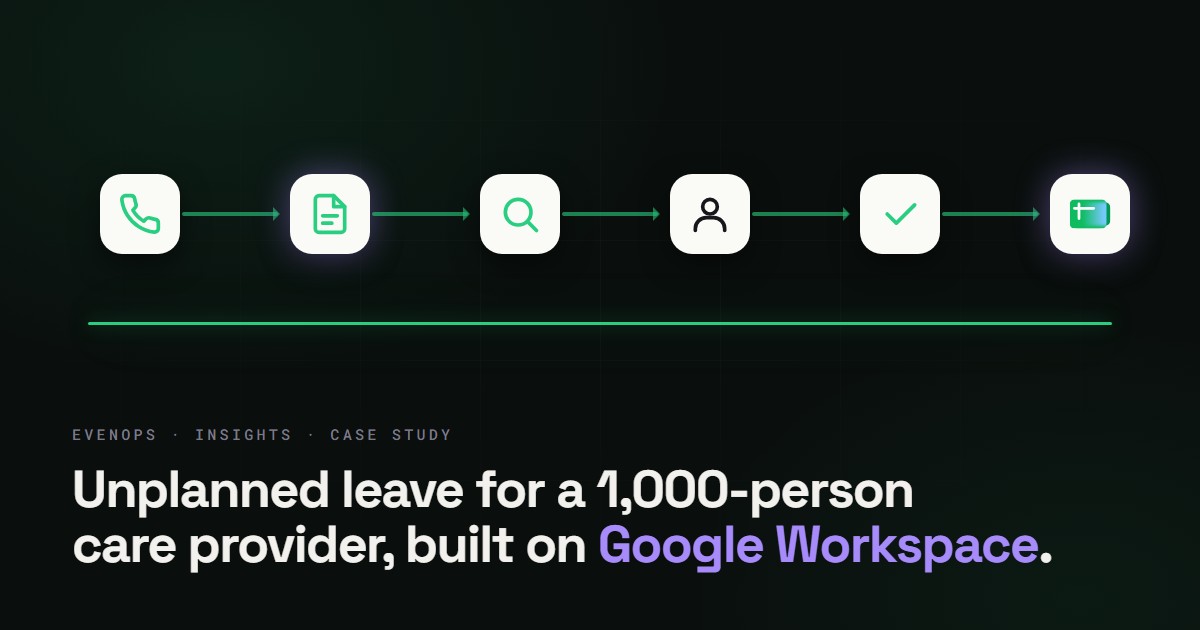
A script that works on the day you test it and one that is still working in a year are different things. The difference is a handful of habits, shown below in the order a run uses them.
- 01Trigger. a form, an edit or a clock starts the run.
- 02Lock. one run at a time.
- 03Read once. the whole sheet into memory.
- 04Rules. check, match and decide.
- 05Write once. one batched write.
- 06Log and alert. log every run and alert a person on failure, so nothing fails silently.
- Take a lock. Two runs overlapping can write the same row twice. Apps Script's lock service lets a run wait its turn or exit cleanly.
- Read each sheet once. Read the data into memory in one call, work on it there, and write the results back in one batched call. A script that reads or writes a cell at a time, or scans a sheet from inside a loop over another sheet, is slow and will meet the six-minute limit as data grows.
- Make writes idempotent. Running the same step twice should not create two records. Use a unique key (a message ID, an order number) and check it before writing.
- Do not drop work silently. If a date is typed in a shape the script cannot read, report it to a person rather than skipping the row. A reminder that never fires, with no error anywhere, is the most common failure we see.
- Keep a time budget. Stop cleanly before the six-minute limit and pick up where you left off on the next run.
- Alert a human. Log each run, and send one clear message to a named person when a run fails or something needs review.
Our tutorials build these habits in, and the links are in the tutorials section below.
Security basics
Automation runs with someone's access to mail, files and sheets, so treat it as you would a new member of staff. A few basics cover most of the risk.
- Request the narrowest permissions. Apps Script works out the OAuth scopes a script needs by scanning its code, and Google notes that automatic detection can request scopes your code does not actually use. Setting scopes explicitly in the project manifest is recommended for published scripts so that they use the minimum required permissions. Users may also see an “unverified app” warning for apps that use sensitive scopes.
- Keep secrets out of the code. API keys and tokens belong in script properties (Apps Script's key-value store for configuration, scoped to the script), not pasted into the source or a Sheet. Treat access to the script project as access to those values.
- Know who owns it. Installable triggers run as the account that created them. If that person leaves and the account is removed, the automation can stop. Decide on an owner and a deputy and write them down.
- Escape what you display. Anything from a form or a cell that ends up in an email or a web page must be escaped first, and values written to a Sheet should be sanitised so a cell beginning with an equals sign cannot become a formula.
- Log changes. A run log (what ran, what it changed, what it skipped) is what lets you answer an auditor or a confused colleague.
How we approach access, secrets and handover on client work is on our security page.
When to bring in help
Plenty of Workspace automation is a good DIY project, and the first Form-to-Sheet setup or Studio flow needs no developer at all. The signs that it is time to call someone are consistent:
- The data is messy. Many senders, many layouts, free-text dates, PDFs. Rules written for one tidy format fall over quickly.
- Someone is accountable. If a missed run costs money or breaks a promise to a customer, you need logging, alerts and a person who owns the fix.
- You are near a limit. Runs that approach six minutes, sheets that keep growing, or volumes that push against the daily caps.
- It crosses systems. Workspace plus an accounting package, a CRM or a storefront, where authentication, retries and reconciliation matter.
- It has outgrown its author. Nobody else understands the script, and it has no documentation.
We build this as production code that runs inside your own Google Workspace, handed over with the code and the keys. Our process page shows how an engagement runs, and the Google Apps Script service describes what we build. For help choosing between Studio, AppSheet and Apps Script, start with the comparison.
Tutorials and recipes
These Google Workspace recipes show the pattern in practice. The full tutorials include a walkthrough with working Apps Script code, the trigger setup, and the caveats.
Full tutorials with code
- Capture supplier invoices from Gmail into Google Sheets
- Auto-file Gmail attachments to Drive by sender and type
- Triage inbound Gmail enquiries into a Sheets queue
- Generate a weekly report from Sheets and email it
- Sync a Google Form to Sheets with validation and alerts
- Extract data from Drive PDFs into a Sheet
- Send calendar reminders from a Google Sheet
- Generate Google Docs from a Sheet row
- Flag stale Sheet rows and nudge the owner in Gmail
More Workspace recipes
Browse every recipe on the recipes hub.
Questions people ask
Do I need to code to automate Google Workspace?
No for simple cases. Workspace Studio and AppSheet are no-code tools, and Forms and Sheets have built-in options. You need code (Apps Script, which is JavaScript) when the logic, checks or integrations go beyond what those tools offer.
Is Apps Script free?
Apps Script is available to anyone with a Google account, and Google publishes separate quota tables for consumer and Google Workspace accounts. Workspace accounts get higher daily limits for trigger runtime, email recipients and URL Fetch calls. Check the quota page for current numbers.
What is the longest an Apps Script run can take?
Google's quota table lists 6 minutes per execution for both consumer and Workspace accounts, checked 11/10/2026. Longer jobs need to be split into batches that resume where they stopped.
What happens to an automation when the person who built it leaves?
Installable triggers always run under the account of the person who created them, so ownership matters. Build under an account the organisation controls, and document who owns each script.
When is Apps Script the wrong tool?
When you need heavy data processing, a high-volume public API, strict real-time behaviour, or a full product with its own database and users. Those are better served by a purpose-built service, with Workspace as one of the systems it talks to.
Sources
Product and limit claims in this guide were checked against Google's own documentation on 11/10/2026. Google updates these pages, so check the source before you rely on a number.
- Apps Script overview
- Apps Script quotas and limits
- Apps Script triggers
- Installable triggers
- Authorization scopes in Apps Script
- Properties service
- Extend Google Workspace Studio
- Custom steps in flows (Workspace Studio Help)
- Workspace Updates, September 2026: custom starters, steps and webhooks in Workspace Studio
- AppSheet
- Files you can store in Google Drive (Sheets cell limit)
Want this built, not just read about?
Tell us the workflow. We'll scope it and build it as production code you own, inside your own Workspace.
We typically respond within 24 hours